
The Stripe integration in CloudRadial Storefront allows you to collect payments from your customers for the products and services they select in the storefront. Setup is quick and should take around 15-20 minutes.
Before you start: Stripe will not create a checkout session unless the storefront has Terms and Conditions in place. In the storefront you want to enable for Stripe Checkout, toggle Override Terms and Conditions on and enter your terms text before continuing.
In this article:
- Generate a Restricted Key in Stripe
- Enter Your Key in CloudRadial Storefront
Generate a Restricted Key in Stripe
-
Log into your Stripe Dashboard and click Developers in the top right.

-
Click API keys, then Create restricted key.
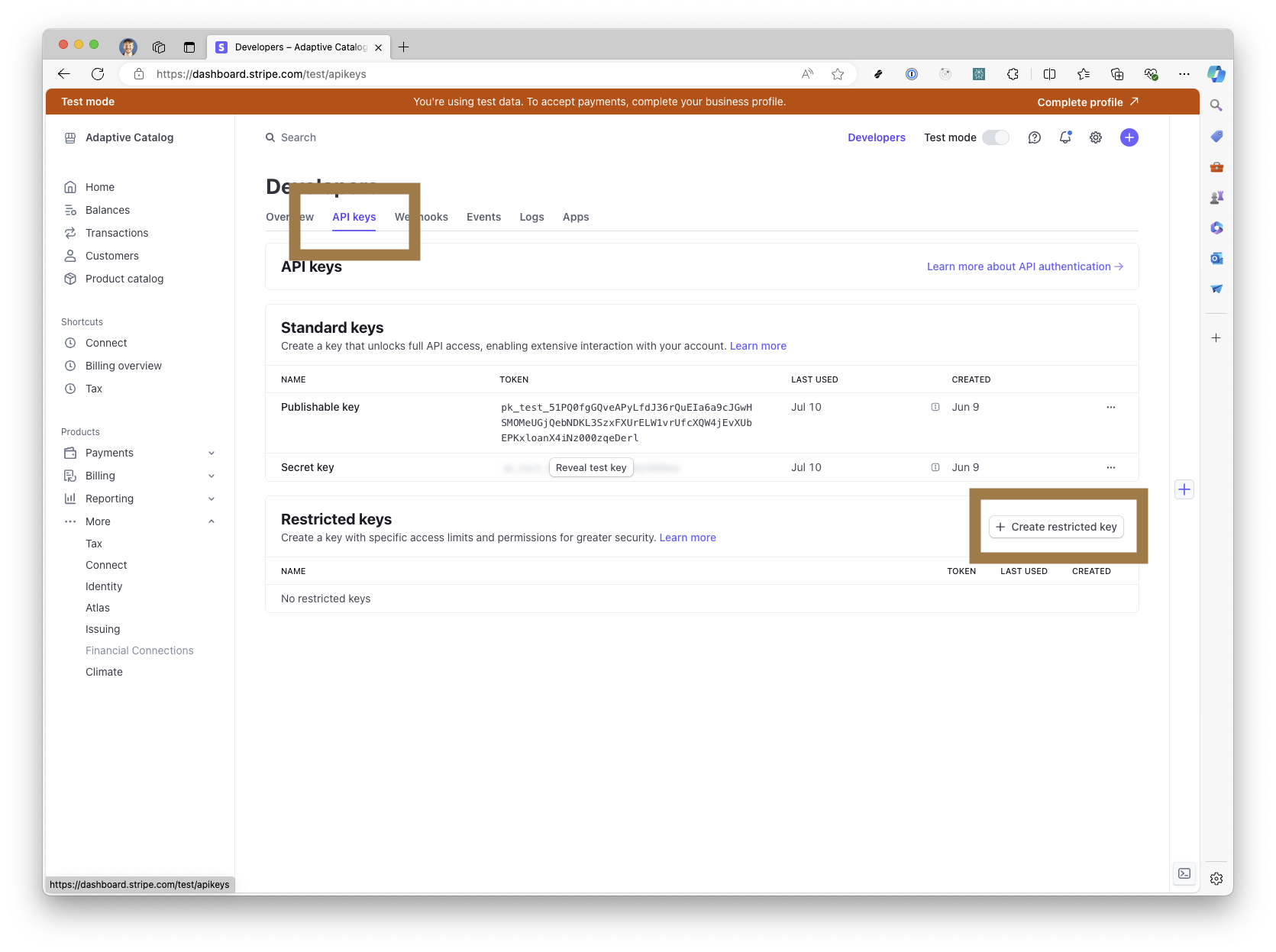
-
Choose Providing this key to another website and click Continue. Fill out the website details as follows, then click Continue:
- Name: Adaptive Catalog
- URL: https://www.adaptivecatalog.com

-
Click Reveal test key and copy the resulting key. Use a test-mode key to validate the flow, then switch to a live key when you are ready to accept real payments.

Enter Your Key in CloudRadial Storefront
-
Log into your Storefront admin console (Adaptive Catalog) and go to Settings > Storefront Management > Payment Processing. Click Setup for Stripe.

-
Paste the Stripe restricted key you copied and click Save.

-
Enable payment processing either for all stores - in Global Settings, choose Stripe under Payment Processor - or for a single storefront under that storefront's settings.

-
Go to your storefront, log in, add a few items to the cart, and click Checkout. Settings can take up to 15 minutes to reflect on your storefront.

-
The Stripe payment portal should appear. In test mode, run a transaction with card number 4242 4242 4242 4242, any 3-digit CVC, and a future expiration date.

If you are still having trouble, we're here to help! Submit a ticket here for assistance, and don't forget to check our status page to ensure there are no outages in your area.
Comments
0 comments
Please sign in to leave a comment.